

Connect in a minute
Pick your tool, add the MITPO address, then sign in and allow. The same address works for every tool, and the check prompt at the end of each tab confirms it works for free.
MITPO address
https://mcp.mitpo.io/mcpAlready in an agent app? Let it set this upPaste one prompt into Claude Code, Codex, Cursor or Gemini CLI.
It adds MITPO using your tool’s own settings and never asks for a password or key. You still sign in yourself in the browser.
Set up the MITPO MCP server for me.

Address: https://mcp.mitpo.io/mcp (a remote server over streamable HTTP).

1. Work out which tool you are running in and add a server named "mitpo" using that tool's own command or config file:
   - Claude Code: claude mcp add --transport http mitpo https://mcp.mitpo.io/mcp
   - OpenAI Codex: codex mcp add mitpo --url https://mcp.mitpo.io/mcp
   - Gemini CLI: gemini mcp add --transport http mitpo https://mcp.mitpo.io/mcp
   - Cursor: add a "mitpo" entry with just "url" to mcpServers in .cursor/mcp.json (or ~/.cursor/mcp.json).
   - VS Code: add a "mitpo" entry with "type": "http" and the "url" to servers in .vscode/mcp.json.
2. Do not ask me for, or write down, any password, API key or token. MITPO signs me in through my browser.
3. When it is added, tell me the one step I need to do to sign in and wait for me to finish it.
4. Then check it works by asking MITPO: "Using MITPO, show my plan and credit balance." Do not run anything that spends credits.

Only change MCP settings, and show me any config change before you save it.
Claude on the web or the desktop app, and then on your phone too. Free plans can add one custom connector. On Team and Enterprise an owner adds it in Organization settings first, then each member connects.
- Open Claude connectors
Add it as a connector
Copy the MITPO address above. In Claude open Customize, then Connectors, then Add custom connector. Name it MITPO and paste the address.
Sign in and allow
Log in to MITPO and review what Claude can do. Nothing runs until you allow it.
Check it works
Ask your assistant this. It only reads your account and costs nothing.
Choose which tools Claude can use
To turn MITPO on or off for one chat, select + and choose Connectors. To block a single tool, open Customize, then Connectors, choose MITPO and set that tool to Blocked. Keep anything that spends credits blocked until you need it.
What you will see when you sign in
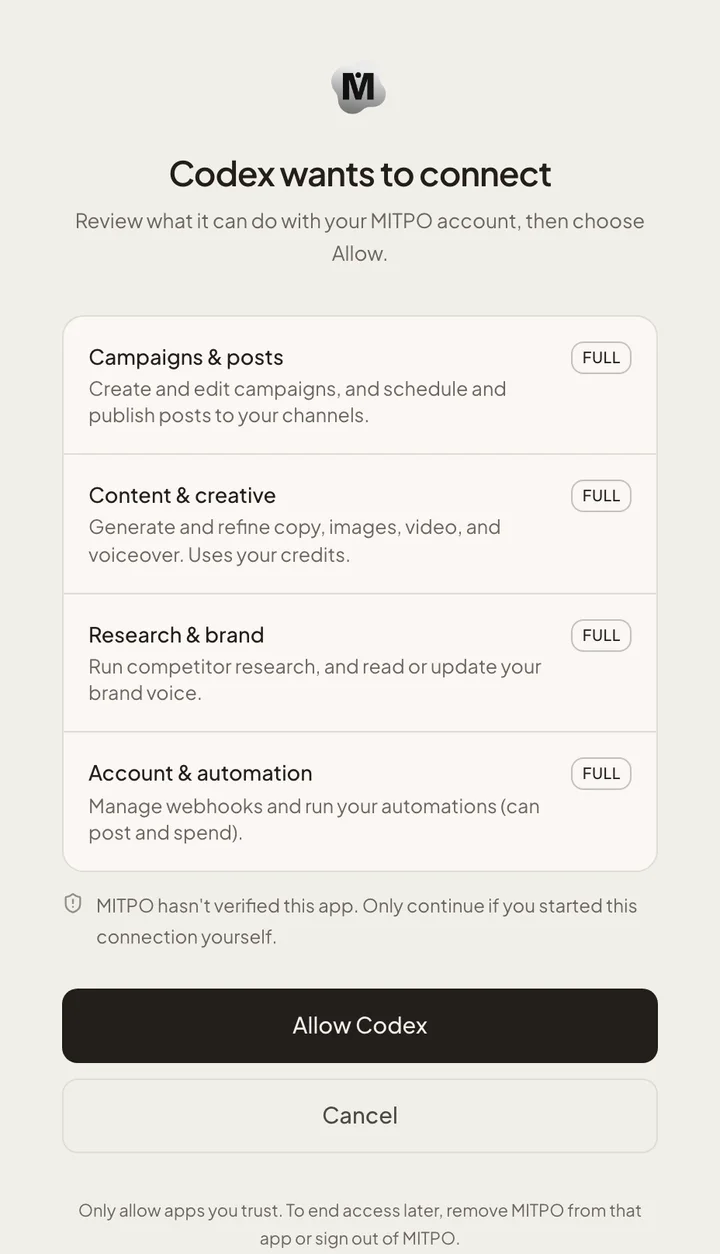
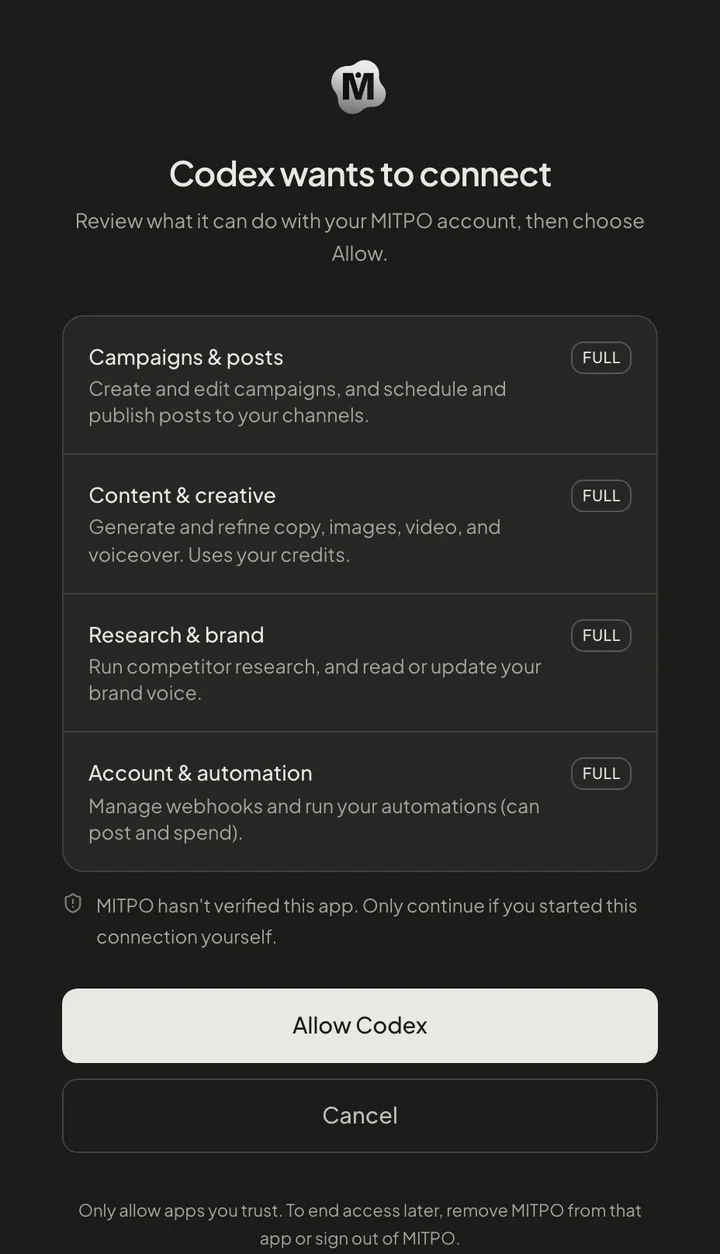
Your tool opens a MITPO page in your browser. It names the tool and lists what it can do, split into read and write access. Choose Allow to connect, or Cancel to stop.
What your assistant can do
Once connected, your assistant can act across your account. Everything it does respects your plan, your credits and the access you approved.
| Area | What you can do |
|---|---|
| Research | Run competitor research, pull trends, check an idea and build customer profiles. |
| Copy and content | Write and refine copy in your saved brand voice, and plan content for any channel. |
| Creative | Quote and generate images, video and voiceover, and edit saved images. |
| Boards and storyboards | Save Canvas boards, storyboards and motion films, then reopen and edit them. |
| Campaigns | Create, update and review campaign plans and their posts. |
| Publishing | Send posts for review. Nothing goes live without your approval. |
| Account | Check your plan, credit balance and usage, and run your saved automations. |
What costs credits
Looking around is free. Making new creative or running research is not.
- Free: reading your account, saving and reopening boards, storyboards and motion films, and getting a price.
- Uses credits or your plan allowance: generating images, video, voice and copy, and running research, the same as in the app.
- Before a paid step your assistant shows the price and waits for your approval. Nothing is charged until you confirm.
- Everything you make is saved in your MITPO library, and links open on MITPO.
Stay in control
A connected assistant acts as you, so keep these habits.
- Connect only tools you trust, and read the allow screen before you choose Allow.
- Set anything that spends credits or posts to ask first in your tool.
- Be careful with content from sources you do not trust. A web page or document your assistant reads can try to steer it.
- Never paste a MITPO key or sign-in token into a chat.
- To end a tool’s access, remove MITPO from that tool or sign out of MITPO. A tool stops working when the sign-in that approved it ends.
If something goes wrong
Most problems are a sign-in that needs a refresh.
| What you see | What to do |
|---|---|
| The sign-in window never opens | Run the sign-in step again from your tool, and make sure it can open a browser. A server with no browser is not supported yet. |
| MITPO tools do not appear | Restart the tool or reload its MCP servers, then ask the check prompt again. |
| Access was denied or has expired | Sign in again. Access ends when you sign out of MITPO or the sign-in expires. |
| A paid request will not run | Check your credits in Settings, then approve the price your assistant shows. |
| Your company blocks custom connectors | Ask an admin to allow https://mcp.mitpo.io/mcp. On Claude Team and Enterprise an owner adds it for the whole organization. |